
The Galaxy A series is Samsung's huge mid-range and budget-friendly family, and it is where the "does my phone support eSIM" question gets genuinely messy. Unlike the flagship Galaxy S line, the A series spans many models across many price points and many regions, and eSIM support is not consistent across them. Some Galaxy A devices have a working embedded SIM; others, sometimes the same model number sold in a different country, do not. That inconsistency is exactly why this guide will not hand you a tidy "these models yes, these no" list. Such a list would be wrong for someone. Instead it shows you the one check that gives a correct answer for your specific phone, and then how to install a travel data plan if the answer is yes.
Why there is no reliable Galaxy A model list
It is tempting to search for "Galaxy A eSIM supported models" and treat the result as gospel. Please don't. The Galaxy A range is built and configured differently for different markets, and eSIM availability can change between those regional variants even when the marketing name is identical. A list that is accurate for phones sold in one country can be flatly wrong for the same-named model sold in another. So rather than assert that any given Galaxy A model does or does not have eSIM, we point you to the phone itself, which is the only source that is right every time.
The good news is that checking takes about half a minute and requires nothing but your phone.
The definitive check: does your Galaxy A have an EID?
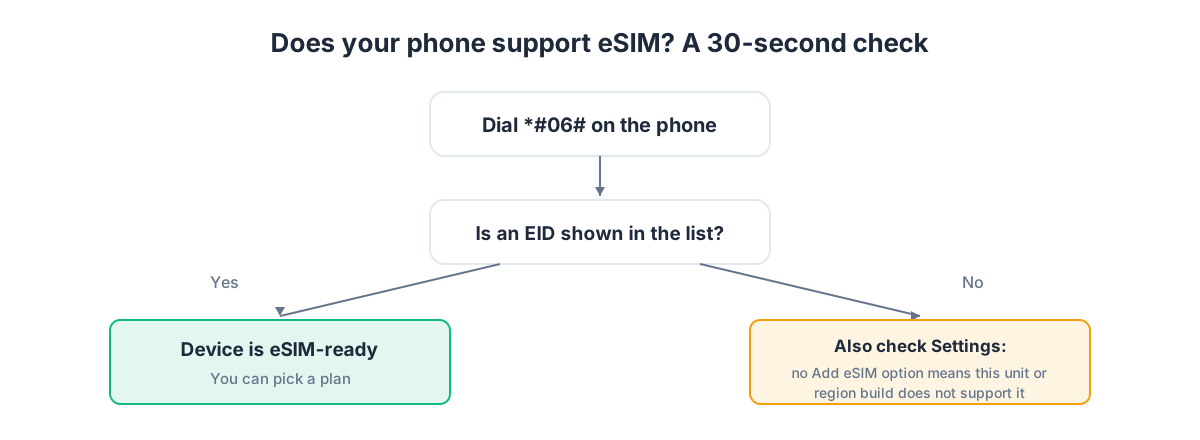
Every device with a real, active embedded SIM carries an EID, a long identifier the phone prints from its own hardware. If your Galaxy A shows an EID, it has eSIM. If it does not, no plan or setting will add one. This is the authority; treat everything else as a hint.
- Open the phone dialer and enter *#06#. A panel of identifiers appears. Look for a line labelled EID. If it is there, your phone supports eSIM.
- As a cross-check, open Settings and go to the SIM area, usually something like Connections > SIM manager, though the exact wording and path varies by version of One UI. If there is an option to Add eSIM or Add mobile plan, the feature is active.
If the EID shows up and the settings offer an Add eSIM option, you are ready to buy a travel plan. If you dial *#06# and no EID appears, and the SIM settings only mention physical SIM cards, then this particular Galaxy A does not have an active eSIM, and you would use a physical SIM for travel data instead.
Because the A series is so varied, this two-part check is not just a nicety, it is the whole answer. We use the same approach for every uncertain handset in the phone compatibility guide, and it never depends on remembering which regional build you happen to own.
If your Galaxy A has eSIM: what you get
A Galaxy A with an active eSIM works as a dual-SIM phone. Your home carrier stays on the physical nano-SIM, keeping your everyday number reachable, and a travel eSIM rides alongside it as a second line handling data at local rates. You choose which line does calls, texts and mobile data.
A GetSim destination plan is typically data-only: it puts your phone online in the country you are visiting, rather than giving you a local phone number. For travel that is what you want. Maps, messengers, ride apps and translation all run on data, and you keep calling and texting through the apps you already use. If you do need a real number that can receive an SMS, for example to confirm an account, that is a separate virtual number, a receive-only rented mobile number that works independently of your data eSIM.
Choose the plan before installing
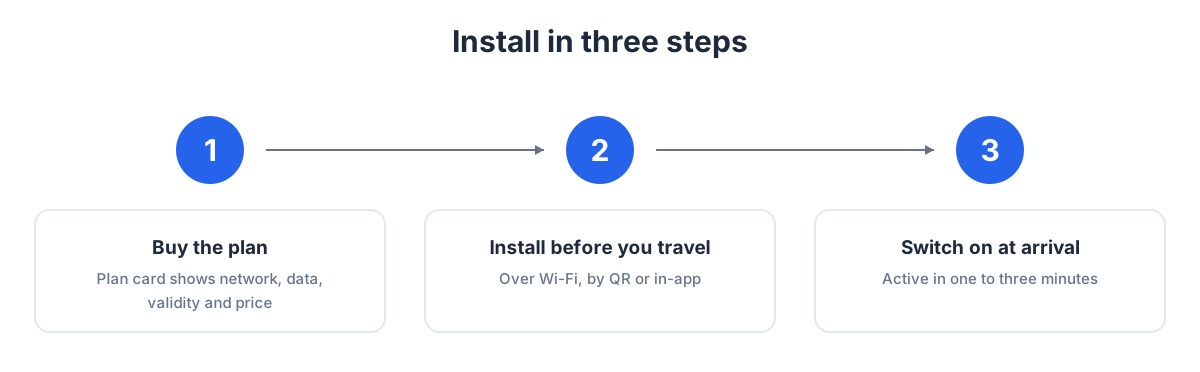
Buy first, install second. GetSim covers 190+ destinations. Find your country, and the plan card shows the network, the data amount, the validity window and the price up front, before you pay. If your trip spans several countries, a single regional plan can cover the whole area and save you buying an eSIM at every border.
It all runs through one account and one shared prepaid wallet in the app. Frequent travelers top the wallet up once and pull plans as needed. Unused, unactivated plans come with a 7-day refund, so buying ahead of a trip that might shift is low-risk.
Installing a travel eSIM on a Galaxy A, step by step
The install is short. Because One UI menu paths vary by version across the A range, use the wording below as a guide and pick the nearest match on your build.
- Connect to Wi-Fi first. The profile downloads over the internet, so use home, hotel or airport Wi-Fi. A weak signal is the usual reason an install stalls.
- Open Settings and find the SIM area (commonly Connections > SIM manager).
- Choose Add eSIM or Add mobile plan, then Scan QR code.
- Scan the QR code from your GetSim order so the phone can download and install the profile.
- Give the new line a name such as "Travel" to tell it apart from your home number.
- Set the travel eSIM as your data SIM, and keep calls and texts on the home number.
- Turn on Data Roaming for the travel eSIM. A travel eSIM uses partner networks in the destination, which the system treats as roaming for that line, so this must be on or you will see no internet even after a clean install.
Install at home, switch on abroad
If your trip is soon, install before you leave. The download works over any Wi-Fi, so do it at home the day before: add the eSIM, name it, set it as your data SIM, and leave Data Roaming for that line off until you land. On arrival, turn Data Roaming on and the network connects on its own. No airport Wi-Fi hunt needed. For background, see what an eSIM is and the general install guide.
Battery and dual-SIM housekeeping
Running two lines can raise battery use a touch. On a trip, set mobile data to the travel eSIM only so the home line stops chasing roaming data in the background; it still rings and receives texts. Enable Wi-Fi Calling for the home line and you will keep receiving calls and SMS to your usual number over any Wi-Fi at no roaming cost.
Topping up and reusing the eSIM
Running low, top up in the app without reinstalling. The profile stays on the phone; you add data or extend validity on the same line. Next trip, keep the line and load a new plan from your wallet.
Stretching your data on a Galaxy A
Because many Galaxy A phones ship with modest storage and you are often on a smaller travel plan, it pays to keep data use lean. Open Settings > Connections > Data usage and turn on Data saver, which blocks background data unless you whitelist an app. The same screen shows per-app usage, so you can quickly spot and restrict whatever is quietly eating your allowance. Set gallery and cloud backups to Wi-Fi only, and switch Play Store and Galaxy Store auto-updates to Wi-Fi only as well, so a big app update never lands on your travel data mid-trip.
The heaviest consumers are the obvious ones: streaming video and video calls. An hour of standard-definition streaming or a long video chat can take a real bite out of a small plan. Keep those for Wi-Fi where you can, and lower the streaming quality when you must watch on cellular. Download offline maps for your destination city before you leave Wi-Fi, so turn-by-turn navigation barely touches the plan. If you are unsure how much to buy in the first place, our guide to how much data you need for a trip gives realistic figures by activity so you avoid over- or under-buying.
eSIM versus a local SIM card on the A series
If your Galaxy A turned out to support eSIM, is it still worth grabbing a local SIM abroad instead? Usually not. The embedded eSIM lets you buy and install before you land, keeps your home number safe in the physical tray, and spares you the airport kiosk queue and the risk of misplacing a tiny card. A local physical SIM only really earns its place if you need an actual local number for calls, which most travelers do not. For pure data, the eSIM is faster and lower-risk. And if your particular Galaxy A does not support eSIM, the practical comparison shifts to physical SIM versus roaming, which the eSIM vs roaming guide covers.
A note on buying the right phone next time
If eSIM matters to you and you are shopping for your next Galaxy A, the safest move is to check the specific unit before you commit, ideally in the shop by dialing *#06# on a display model of the exact regional variant you would buy. Do not rely on the international spec page, because the version stocked in your country may differ. This is the same logic we apply throughout: the phone in your hand is the authority, not the model name on the box. When you have confirmed eSIM, everything in this guide applies and setup takes minutes.
Galaxy A eSIM: decision table
| Result of your check | What it means |
|---|---|
| *#06# shows an EID and SIM settings offer Add eSIM | Your phone supports eSIM; install a data-only travel plan |
| No EID and no Add eSIM option | This Galaxy A has no active eSIM; use a physical SIM for data |
| Friend's same model has eSIM but yours doesn't | Different regional variant; trust your own EID check, not the model name |
| Supported, multi-country trip | Pick a regional plan instead of one eSIM per border |
| Need to receive SMS on a real number | Add a receive-only virtual number beside the data eSIM |
| Supported, leaving soon | Install over Wi-Fi now, enable roaming for the travel line on arrival |
Galaxy A eSIM questions
Which Galaxy A models support eSIM?
There is no dependable universal list, because support varies by model and by region even under the same name. The honest answer is: dial *#06# on your phone. If an EID appears, yours supports it.
My phone has no eSIM option. Can I add it?
No. eSIM is hardware. If there is no EID, no app or update can create one, and you would use a physical SIM for travel data.
The menu doesn't match your steps. Am I doing it wrong?
Not at all. One UI paths vary by version across the A range, so look for the closest wording, usually under SIM manager or mobile networks.
Installed but no internet?
Check that Data Roaming is on for the travel eSIM and that it is set as your data SIM. That fixes almost every case.
Can I set it up before I fly?
Yes. Download over home Wi-Fi and enable roaming on arrival. If you are heading to Türkiye specifically, complete the final activation on arrival over local Wi-Fi.
A quick pre-flight checklist
If your Galaxy A passed the EID check, run through this before you leave: buy the destination plan while you have easy Wi-Fi, install and name the eSIM, set it as your data SIM, enable Wi-Fi Calling on your home line, and leave Data Roaming for the travel line off until you land. Do it the evening before departure rather than at the gate, so any small hiccup is solved on home Wi-Fi with time to spare. On arrival, switch Data Roaming on for the travel line and you are connected within a minute, no airport Wi-Fi hunt required.
The bottom line
With the Galaxy A series, ignore any model list and let your own phone answer. Dial *#06#: an EID means yes, no EID means no. If yes, buy your destination plan first, install over Wi-Fi, set the travel eSIM as your data line, keep your home number for calls, and turn on Data Roaming for the travel line when you land. If your device turns out not to support eSIM, our eSIM vs roaming comparison covers your other options for staying connected abroad.
Ready when you are
Put this guide to use on your next trip
Travel eSIMs that install in minutes and keep your home SIM active.