
Before you buy a travel plan, you want one thing confirmed: does this phone actually support eSIM? The reassuring part is that you can settle it in about thirty seconds, on the phone in your hand, without asking a shop or trusting a spec sheet you half remember. There are two checks, they agree with each other, and together they are the authority on the question. This guide shows both, explains what the results mean, and clears up the model-by-model confusion that trips people up.
Why not just look up your model online? Because the same model name can ship in different regional versions, and a phone's eSIM support can differ between them. A list can mislead. Your own phone cannot. So we test the device directly.
Getting this right before you buy matters more than it might seem. A travel plan is a downloaded profile, and a phone with no eSIM hardware simply has nowhere to put it, so confirming support first is the difference between a smooth trip and a refund request. The two checks below take under a minute combined, need no special knowledge, and give you a definitive answer for the exact device in your hand rather than a hopeful guess based on the name on the box.
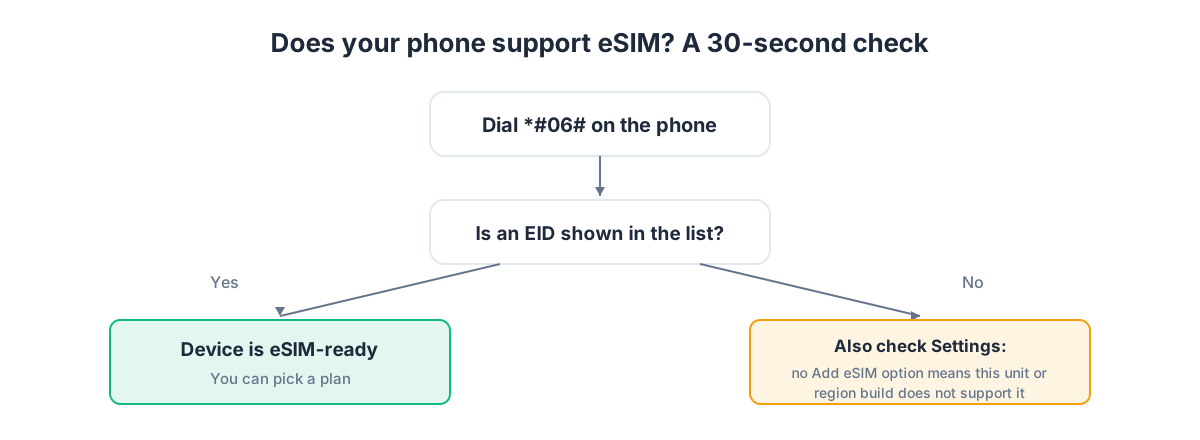
Check one: dial for the EID
Every phone with an eSIM chip has an EID, a unique identifier for that embedded SIM. If your phone can show you an EID, it has the hardware. The quickest way to ask is a dial code.
- Open the phone dialer, as if making a call.
- Type *#06#. You do not press call; the screen responds as you finish typing.
- A panel of identifiers appears. Look for a long number labelled EID, usually 32 digits.
If an EID is shown, your phone has an eSIM. If the panel shows only an IMEI and no EID, that is a strong sign the phone has no eSIM hardware, though it is worth confirming with the second check because some phones hide the EID from this screen. The diagram below shows where the EID sits among the other identifiers so you know what you are looking for.
Check two: look for the add-eSIM option in settings
The second check confirms the software is ready too, and it is where you will actually install a plan later. The menu wording varies by brand.
- iPhone: Settings > Cellular (or Mobile Service / Mobile Data). If you see Add eSIM or Add Cellular Plan, you are set.
- Pixel: Settings > Network & internet > SIMs, then look for Download a SIM instead or a + to add one.
- Samsung Galaxy: Settings > Connections > SIM manager, then look for Add eSIM. The exact path varies by version, so if it is not there, check under the mobile network menu.
- Other Android: Search the Settings search bar for "eSIM" or "SIM"; the option surfaces if the phone supports it.
If both checks pass, an EID from the dial code and an add-eSIM option in settings, your phone supports eSIM with full confidence. If they disagree, trust the presence of a real add-eSIM flow, since that is the function you will actually use.
Why the on-device check beats any list
It is tempting to search your model name and trust whatever a table online says, but that approach has a real weakness worth understanding. Manufacturers frequently sell the same-named model in different regional variants, and those variants can differ in exactly the ways that matter for eSIM: some markets get a dual physical-SIM version with no eSIM, others get an eSIM version, and the box and marketing name look identical. A generic list cannot know which variant is in your hand. It can only tell you what is typical, which is useful context but not proof. Your own phone, by contrast, knows exactly what hardware it contains and what software it runs. That is why the two checks in this guide are framed as the authority: they interrogate the actual device rather than a statistical guess about your model.
There is a second reason the device check wins. Software updates can change what is available in the settings menu, and a phone that shipped without an obvious eSIM option may gain one, or have it surfaced differently, after an update. A static list captured at launch cannot reflect that. Running the checks yourself reflects the phone as it is today, updates included. Thirty seconds of tapping beats any amount of second-hand reading.
What about specific brands and models?
Here is where honesty beats a tidy table. Some things are well established; others genuinely need the on-device check.
iPhone: eSIM support arrived with iPhone XS and every mainstream iPhone since supports it. In the United States, iPhone 14 and later models are eSIM-only, with no physical tray at all, so the eSIM is not optional there but standard. Elsewhere those models keep a physical tray alongside the eSIM.
Google Pixel: Pixel 3 and later support eSIM. If you have a reasonably recent Pixel, you are almost certainly fine, but the settings check confirms it in seconds.
Samsung Galaxy S: The Galaxy S20 and later generally support eSIM. The important caveat is that some regional versions of a given model differ, so a phone bought in one market may not match another. This is exactly why the EID and settings checks matter more than the model name.
Samsung Galaxy A and Xiaomi: Here we deliberately avoid a per-model verdict, because support is genuinely inconsistent across the range and across regional variants. Do not assume yes and do not assume no from the model name. Run the two checks; they are the authority for these lines. It takes thirty seconds and removes all doubt.
Reading the results
| Dial code (*#06#) | Settings menu | What it means |
|---|---|---|
| EID shown | Add eSIM present | Fully supported. Go ahead and buy a plan. |
| EID shown | No add-eSIM option | Hardware present; check for a software update, then recheck settings. |
| No EID | Add eSIM present | Trust the settings flow; the EID may be hidden on this screen. |
| No EID | No add-eSIM option | This phone most likely does not support eSIM. |
What the EID and IMEI tell you apart
When you dial the information code you see several identifiers, and it helps to know what each is so you read the result correctly. The IMEI identifies the phone hardware itself and exists on every mobile phone ever made, eSIM or not, so its presence tells you nothing about eSIM support. The EID is the one that matters: it identifies the embedded SIM chip specifically, so it only appears when that chip exists. A phone might show one IMEI, or two on a dual-SIM device, plus a serial number and other codes. Do not be distracted by the crowd of numbers; you are hunting for the single line labelled EID. If it is there, the embedded chip is there. If the only SIM-related identifiers are IMEIs, the phone is very likely relying on physical SIMs alone.
Occasionally a phone that genuinely supports eSIM will not surface the EID on that particular screen because the manufacturer chose to hide it there. That is exactly why this guide pairs the dial code with the settings check. When the two disagree, the working add-eSIM flow in settings is the decider, because that is the feature you will actually use to install a plan. Treat the dial code as a fast first indicator and the settings menu as the confirmation.
If your phone does not support eSIM
It is not the end of the road, but it does change your options. Without eSIM hardware you cannot install a downloaded profile, so a travel eSIM is not for that device. Your alternatives are a physical travel SIM, roaming on your home plan, or using the phone on Wi-Fi only. If you are shopping for a new phone anyway, checking for eSIM support is worth doing, since it makes every future trip a two-minute setup rather than an airport errand.
Tablets, watches and other devices
Phones are not the only devices that take an eSIM. Many cellular tablets support one, which can be a comfortable way to use a large screen for maps and reading abroad, and the same *#06# and settings checks apply. Cellular smartwatches often use eSIM too, though a watch usually pairs its plan to a phone number rather than running an independent travel data plan, so it is less relevant for a standalone travel eSIM. If you are hoping to put a travel data plan on a tablet, run the two checks on the tablet exactly as you would on a phone. A device that passes both is ready; one that lacks an EID and an add-eSIM option is not a candidate, and you would fall back to Wi-Fi or tethering from a phone that does support it.
Tethering is worth a mention here because it widens your options. If your phone supports eSIM but your tablet or laptop does not, you can put the travel plan on the phone and share its connection to the other devices over the phone's hotspot. That way a single eSIM keeps several devices online, which also ties back to sizing your data: a shared hotspot uses more, so plan accordingly if you intend to work off a laptop through your phone.
One more thing: carrier locking
A phone can support eSIM hardware yet still be locked to a specific operator, which can block a third-party travel eSIM from activating. Most phones bought outright or fully paid off are unlocked. If yours came subsidised through a contract, it is worth confirming it is unlocked before you rely on a travel plan. Your operator can tell you, and unlocking is usually straightforward once any contract terms are met.
Ready to travel
Once both checks pass and your phone is unlocked, you are ready. Pick a destination on the eSIM countries pages, or start at the eSIM hub, and for a multi-country trip look at the regional plans. New to the whole thing? Read what an eSIM is for the concept and the step-by-step installation guide for the setup. GetSim covers more than 190 destinations from one app and one prepaid wallet, and unused, unactivated plans carry a 7-day refund window, so there is no risk in getting set up ahead of time.
Frequently asked questions
What is the EID exactly?
It is the unique identifier of the embedded SIM chip, much like an IMEI identifies the phone itself. If your phone can show an EID, it has eSIM hardware. It is a long number, typically 32 digits.
My Galaxy A does not clearly say whether it supports eSIM. How do I know?
Run the two checks on the device. Dial *#06# and look for an EID, then look for an add-eSIM option in the SIM settings. For Galaxy A and Xiaomi especially, the on-device result is the reliable answer, not the model name.
Does the *#06# code cost anything or call someone?
No. It is a local information code handled entirely by the phone. Nothing is dialled and nothing is charged.
My phone supports eSIM but the plan will not activate. Why?
The most common cause is a carrier lock. A locked phone can refuse a third-party eSIM. Confirm the phone is unlocked with your operator. If it is unlocked, revisit the setup steps in the installation guide.
My phone has two physical SIM slots. Does that mean no eSIM?
Not necessarily, and this is a common point of confusion. Some phones offer a dual physical-SIM slot in certain regions and an eSIM version in others, while a few support a physical SIM and an eSIM together. Two visible trays do not rule eSIM out on their own. Run the checks: the EID and the add-eSIM setting are what actually confirm it for your specific unit.
Do I need the latest phone for eSIM to work with a travel plan?
No. eSIM support has been common for several years across iPhone, Pixel and the Galaxy S range, so a phone that is a few years old is often perfectly capable. Rather than guessing by age, run the two checks. A supported older phone works with a travel plan just as well as a brand-new one.
Can I check without buying anything first?
Yes, and you should. Both checks are free and run entirely on your phone before you spend a penny. Confirm support, then choose your plan with confidence.
Ready when you are
Put this guide to use on your next trip
Travel eSIMs that install in minutes and keep your home SIM active.